CM-Cabinets Library User Guide
The Cutout feature allows customers to add lettering and decorative cutouts to a cabinet part. Sample DXF files are provided by CabMaster Software™ which are used in this topic but you can create your own folders and DXF or .QPF files that can be added to subfolders within the <your CabMaster folder>\Table\ DXFCutOuts folder.
As you create subfolders, these will be made available for selection from the Folder/File drop list, as shown.
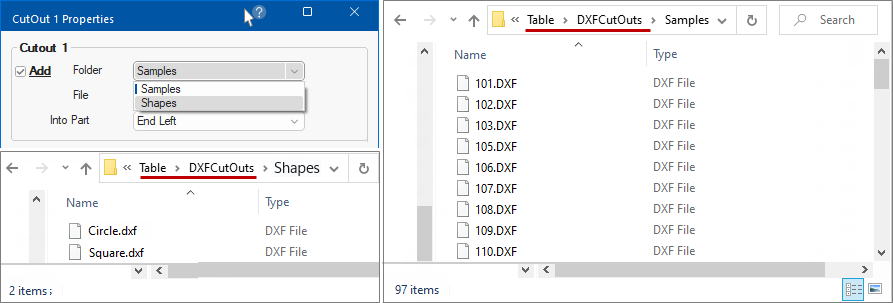
The following DXF's are supplied in the ...DXFCutouts/Samples folder.
You can create as many Folders/Files as you require in the ...Table/DXFCutouts folder for selection.