CM-Cabinets Library User Guide
This topic discusses the Hardware > Hardware page of the Cabinet Properties.
These controls only affect individual cabinets in your current drawing and no machining is associated.
If machining is required then use the options on the Hardware > Legs page at either Drawing or Cabinet level.

Select from the drop list the required Accessory Item and a quantity edit box will be presented. Type in the number of items required for this cabinet.
Machining will not be associated with any items selected here but you can set pricing for reporting purposes.
Adjustable Legs: If machining is required, set the options on the Hardware > Legs page.

Click to Expand
This is informational only.
If you wish to override these settings on the current cabinet, then see the Hardware > Hinges page, discussed below.
This is informational only.
If you wish to override these settings on the current cabinet, then see the Door Handles > Basic page.
Select from the drop list the required Construction Item and a quantity edit box will be presented. Type in the number of items required for this cabinet.
The Hinges page on the current cabinet is only used if you wish to override the default settings (see Hardware page). To do this, tick the applicable Override checkbox and used the relevant drop list to select.
To create new hinges or edit existing hinges, see the discussion on the Hinge Editor.
The Preview Pane shows the 4 hinges/plates in green.
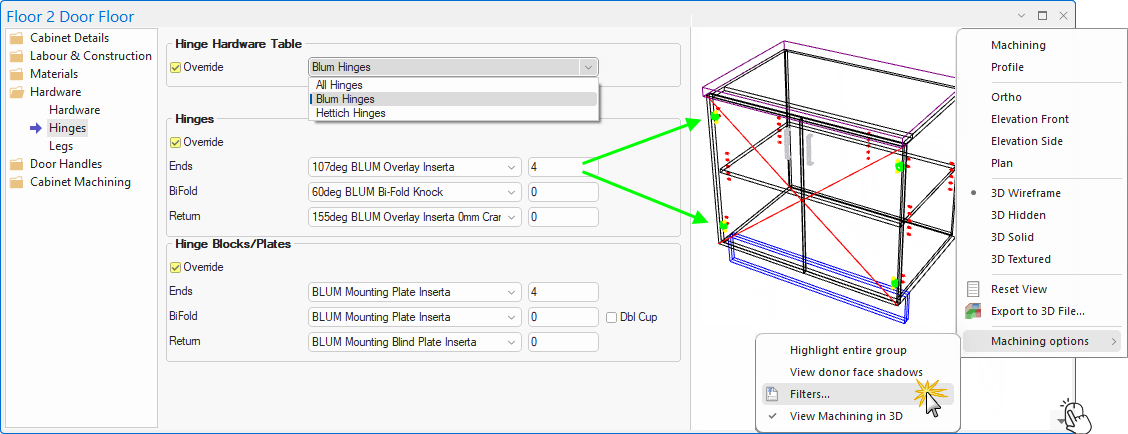
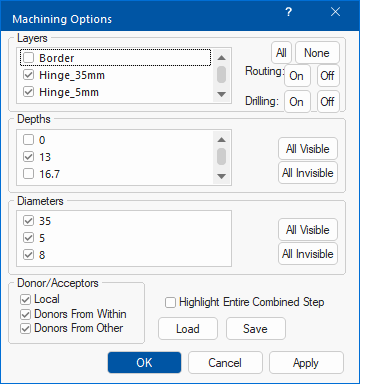 Filters can be used in the Preview Pane, as shown above, by using the Machining Options > Filters... menu option.
The Machining Options allows you to turn on/off what is visible, which works in the same way as [F9] View Options (if the Display > Show Machining option is enabled).
For the image in the Preview Pane above, some of the Layers and Depths have been turned off for a cleaner image.