CM-Cabinets Library User Guide
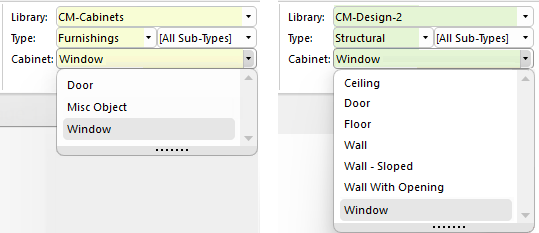
The Window item is available from both the CM-Cabinets and the CM-Design-2 library and can be easily customised.
A window can be set in a wall and be displayed with either...
 Watch the Videos which guide you through the customisable settings and shows you how to enhance your designs with PhotoView renders using environments, which give you a 360° background with natural lighting such as the sun shining in the window.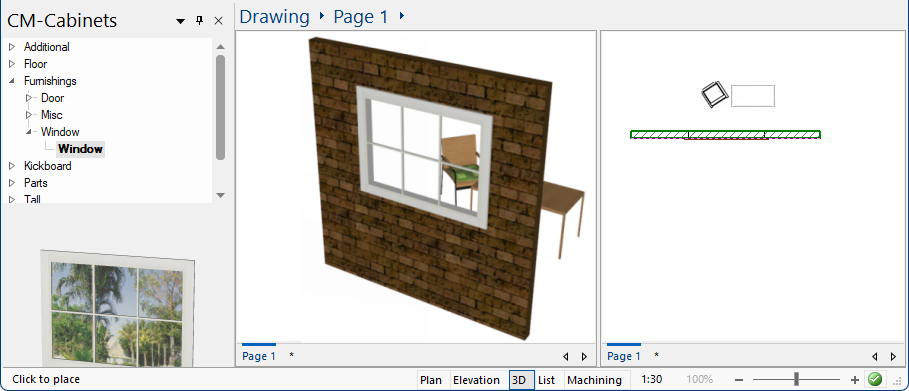
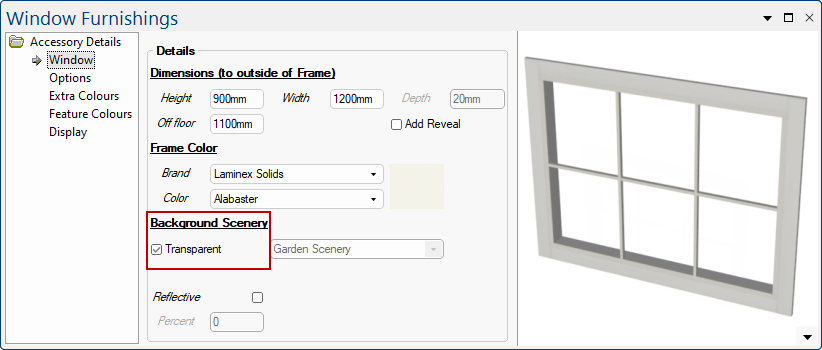
The Accessory Details > Window page has an option that allows the background to be viewed through the window.
There are also a number of scenery selections available by unticking the 'Hide Scenery' checkbox and using Scenery drop list.

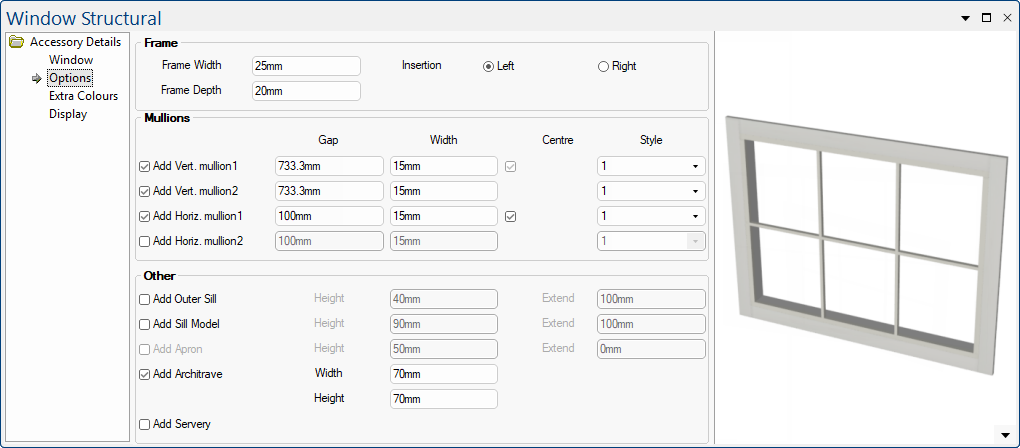
On the Options page, you can customise the Frame, Mullions and Other details of your window.
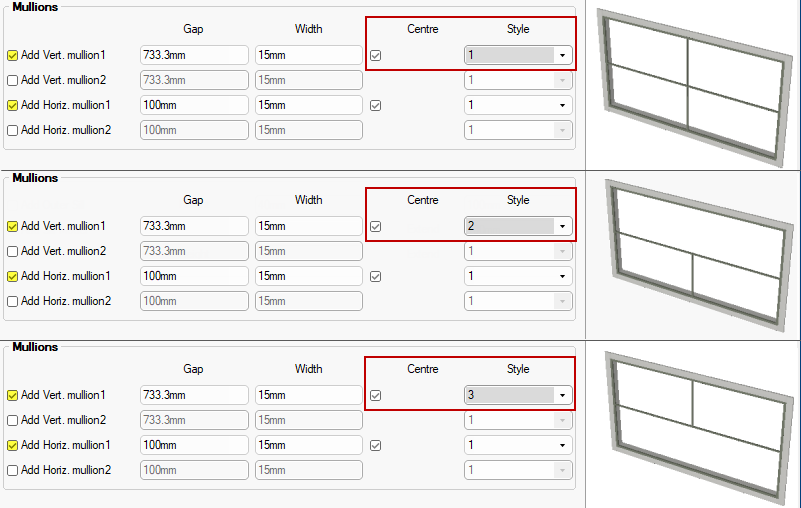
Pictorial explanation of Mullions Style options
As shown here, you can use a combination of options to create your own window design.
A Minute with Mike : In this video, you will be guided through the customisable settings for the Window found in the CM-Design-2 library, where an extensive range of models can be found. [1:52 mins]
A Minute with Mike : This video shows you how to level up your PhotoView renders using environments, which give you a 360° background with natural lighting such as the sun shining in the window. [2:07 mins] See also the tutorial on 3D Photoview Best Practice