CM-Cabinets Library User Guide
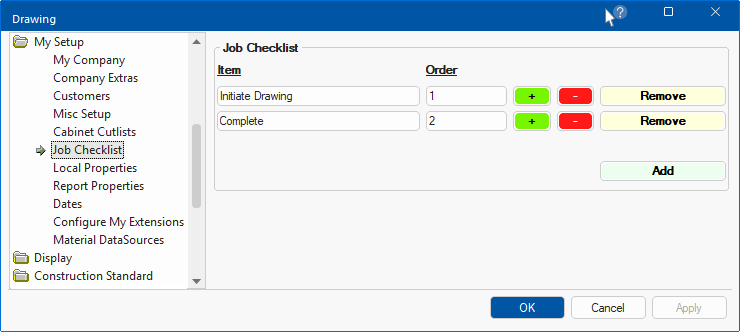
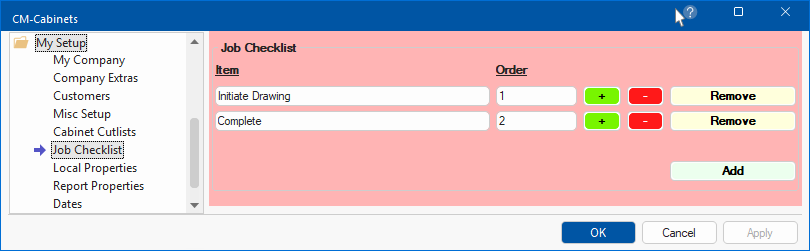
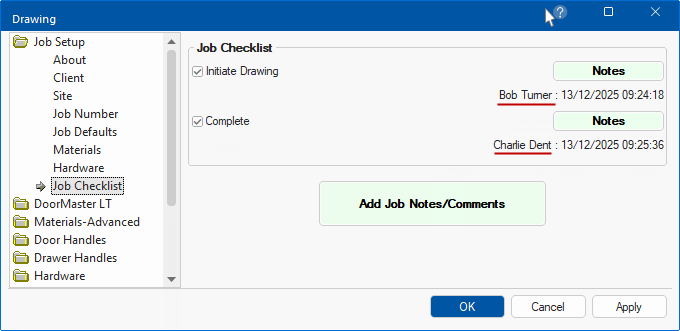
Job Checklist items are user defined variables created and named under My Setup and, (if enabled), default values applied under the Job Setup categories.
Setup the Job Checklist feature in the Catalog Properties as this will be used for all future jobs...
Details about the Designer are set on the Job Setup > Job Number page of the Drawing Properties.
 Watch the Video : A Minute with Mike on how you can easily keep track of each stage of your job by customising and using the Job Checklist feature.
 The following example shows that the My Setup > Job Checklist page has three (3) checklist items. These checklist items are ...
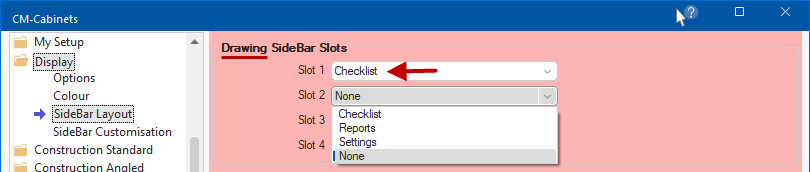
As checklist items on the Drawing SideBar are ticked on and notes entered using the  button, the Job Setup > Job Checklist page is automatically updated, therefore
  button on this page is only required if you want them to specifically display on the Drawing SideBar checklist.
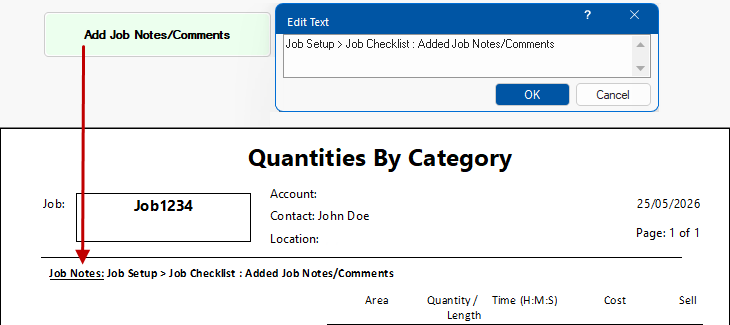
The Add Job Notes/Comments button in the Job Setup only appears on reports - click here to view.
A Minute with Mike : See how you can easily keep track of each stage of your job by customising and using the Job Checklist feature. [1:19 mins]