CM-Cabinets Library User Guide
Corner cabinet construction is different is some areas to standard cabinets. The following will discuss: -
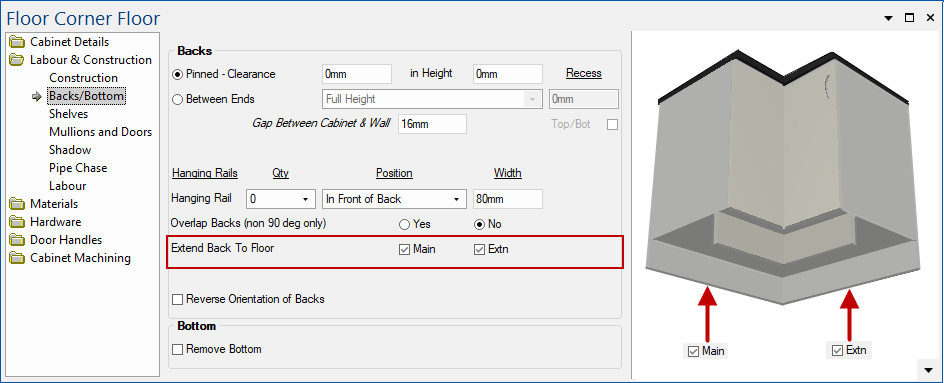
The Labour & Construction > Backs/Bottom page on corner cabinets provides the ability to extend Backs (independently) to the floor using the check boxes to Extend Back To Floor for Main and Extn (only applicable if the back is flush with the bottom).
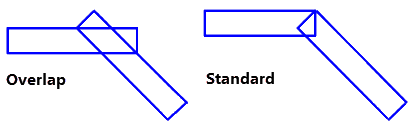
When a corner cabinet is not at 90 degrees the square ends of the Backs have to be chamfered in some way. There are a number of ways this can be done. However, to date these options have been limited by the fact that both the backs have been made the full length of the cabinet to their longest size. It is not possible to ‘overlap’ the backs making the shortest side the full length of the cabinet.
On the Labour & Construction > Backs/Bottom page the overlap is controlled at cabinet level for all corner cabinets using the Overlap Backs option.

Click to Expand
The shipping default is to NOT overlap the backs i.e. make as 'Standard'.
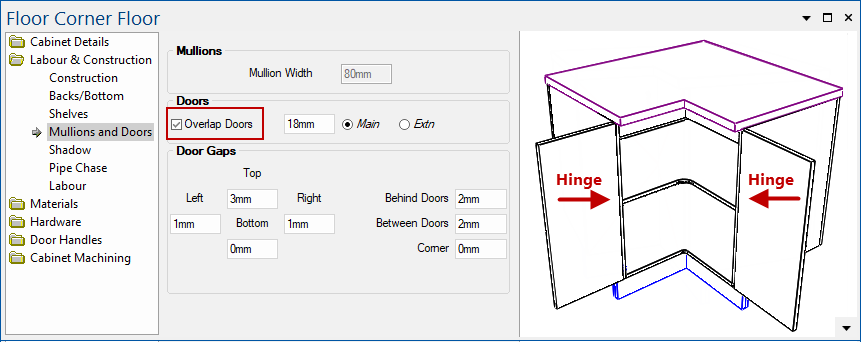
By default corner cabinets hinge on Left or Right and have a bifold hinge in the middle.

Click to view options on Cabinet Details > General Settings page
This can be changed to having hinges on both the Left and the Right by using the Overlap Doors option on the Labour & Construction > Mullions and Doors page, as shown.
Watch the Video below.
Defaults for whether shelves are Adjustable or Fixed are set on the Construction Corner > Shelves page.
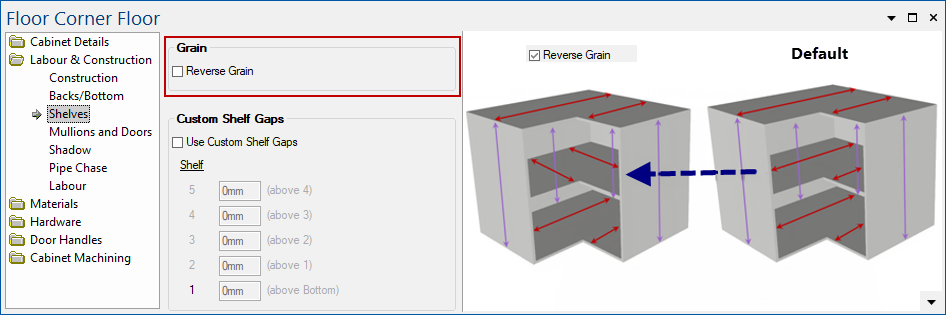
The Labour & Construction > Shelves page on corner cabinets provides the ability to reverse the graining on corner shelves.
By default, the ‘graining’ on a corner cabinet is assumed to be where the shelf, top and bottom run in the same direction, as shown on the right.
Some customers who 'Cam' their shelves want to reverse this for the shelves as they are placing the shelves upside down in overhead (wall) cabinets so that the cam is not visible from below. To make this work the assumed grain needs to be in the other direction.
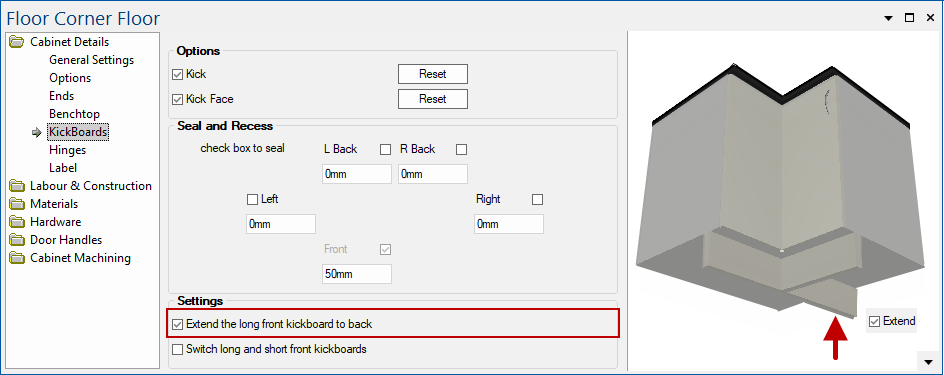
The Cabinet Details > Kickboards page on corner cabinets provides the ability to continue the front kickboard piece through to the back of the cabinet.
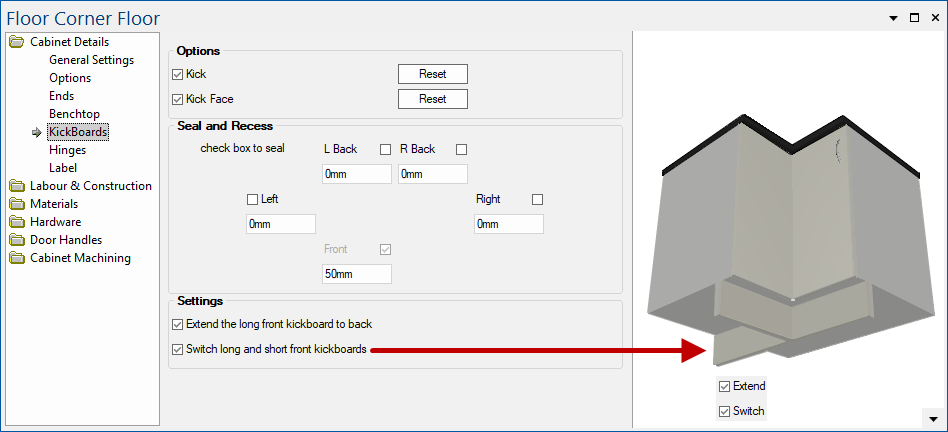
The Switch long and short front kickboards option can be used to the extended Front Kickboard.
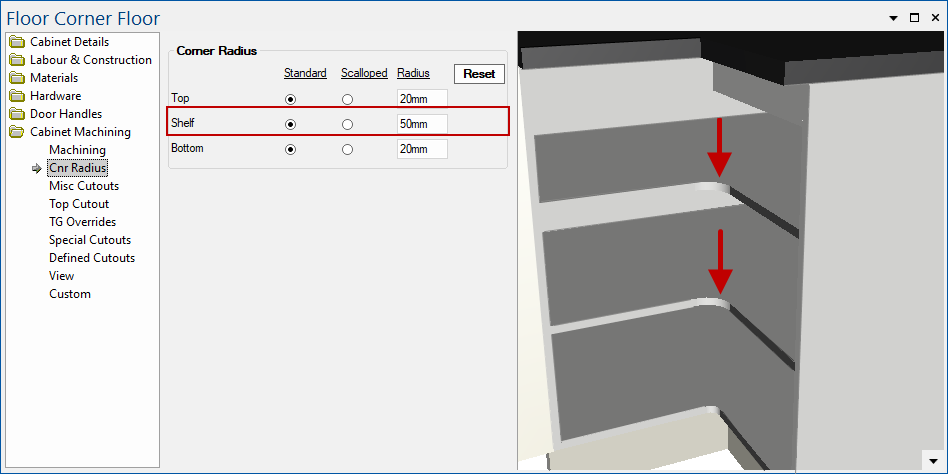
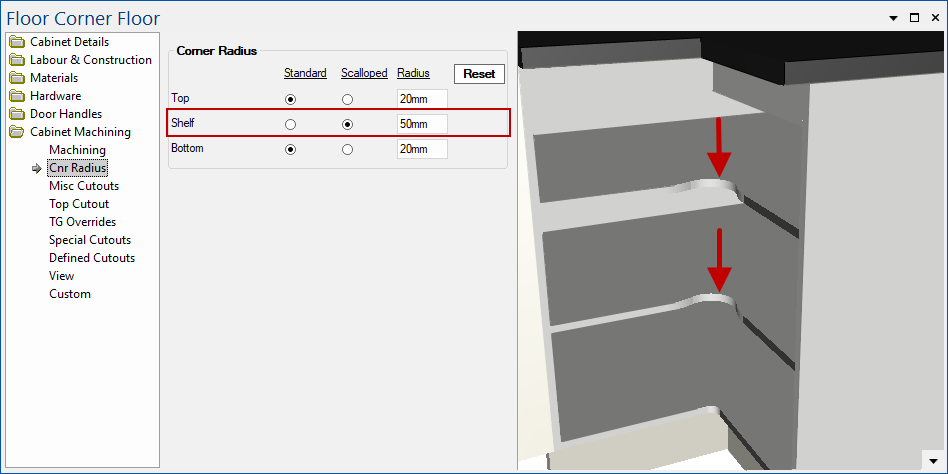
The Cabinet Machining > Cnr Radius page on corner cabinets provides the ability to adjust the internal machined radius of Tops, Shelves and Bottoms per cabinet.
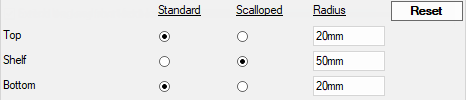
Use the Standard or Scalloped radio buttons in conjunction with the Radius edit box.
Example 1 : Standard Shelf
The Top, Shelf and Bottom of the cabinet are shown here as Standard. Enter the required Radius in the edit box as shown.
Example 2 : Scalloped Shelf
The Shelf of the cabinet is shown here as Scalloped. Enter the required Radius in the edit box as shown.
This video shows how to overlap doors on a corner cabinet. (1:02 mins)