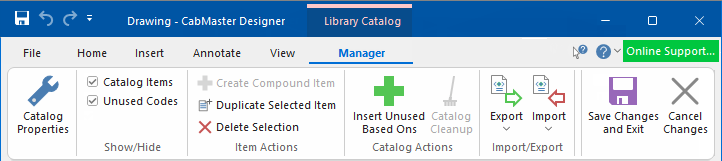
The Catalog Properties accessed from the have extra Categories and Pages which cannot be accessed from the File menu. These are:-
- Pricing > Passwords page
- Visibility > Visibilities page
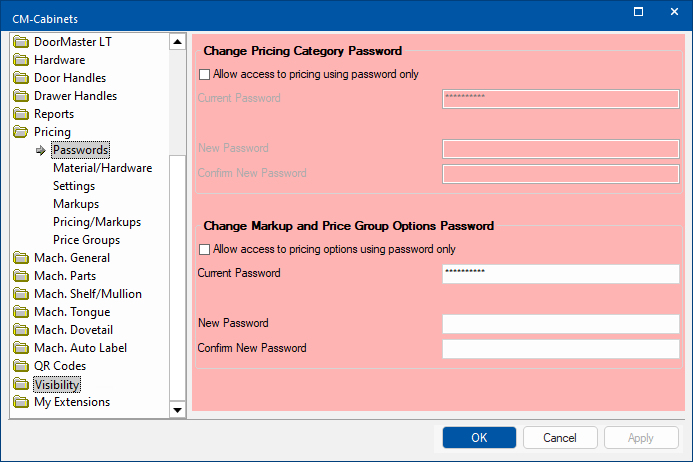
Click to view Visibilities page
Library Cabinets
The Library selected on the Home tab, for example CM-Cabinets, will be made available.
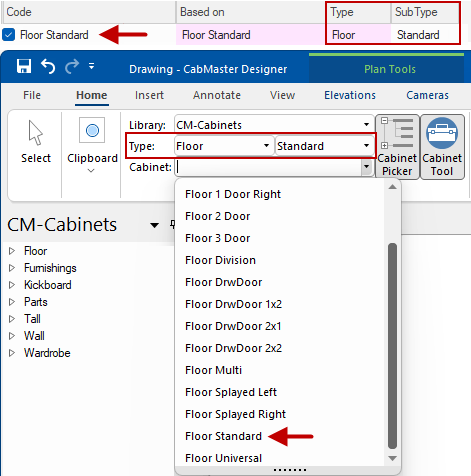
The selected library on the Home tab can then be customised. Individual cabinets e.g. Floor 2 Drawer (shown below), can have options set in the Library (pink background), which will be made available as the Cabinet Tool (blue background) and when placed on the drawing (light grey background).
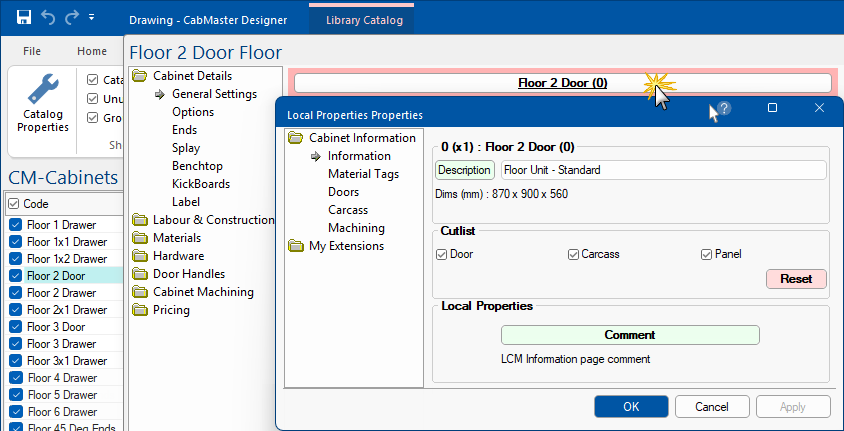
The cabinet Description can be customised, by using either the green button or typing directly into the edit box in the , to change the cabinet label (if F9 Options is set to 'Desc') after placement on the plan and the cabinet tooltip description displayed in the Palette/Gallery.
See topic on the Cabinet Information button and the tutorial on Cabinet Label Display 
Show/Hide Filters
The Code/ID checkbox  can be used to select/deselect all items in the and in List View.
Catalog Items
If the Catalog Items check box is ticked (i.e. Show), all used cabinets/items that are a part of the catalog will be displayed (compare images below).
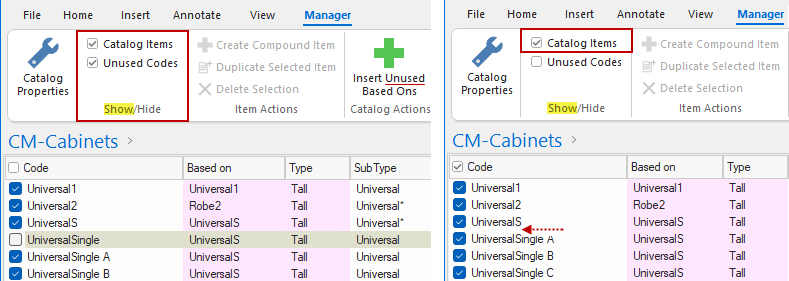
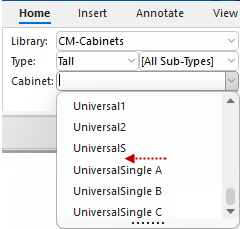
Any cabinets removed from display are simply not shown, not deleted.
The cabinet selection on the Home tab will not make available unticked/disabled cabinets, as shown above left.
Unused Codes
If the Unused Codes check box is ticked (i.e. Show) but the Catalog Items is unticked (i.e. Hide) it will display only those cabinets that will not be made available in the cabinet selection on the Home tab (as shown above right).
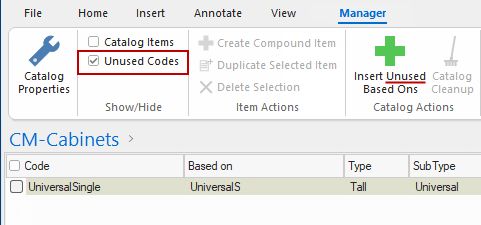
This is especially useful when the Insert Unused Based Ons command is implemented which, after a library update, adds newly developed cabinets to your own customised library (.qim) using this command. Then you simply tick the Use checkbox ( turns blue) if you want to access them in your drawings. Library updates are regularly made available to customers with a valid .
 Watch the Video A Minute with Mike : Turning on New Cabinets in your Library / Insert Unused BasedOns.
Items Actions
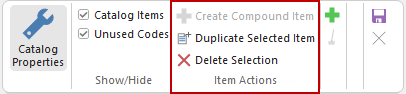
Create Compound Item
A compound item is a single item made up of two or more distinct parts or sub-items. Creating customised parts/items can be done in either Plan View* or directly in the .
*For a full discussion on creating, converting and adding to catalog in Plan View, see tutorials on Compound Items and Freeform.
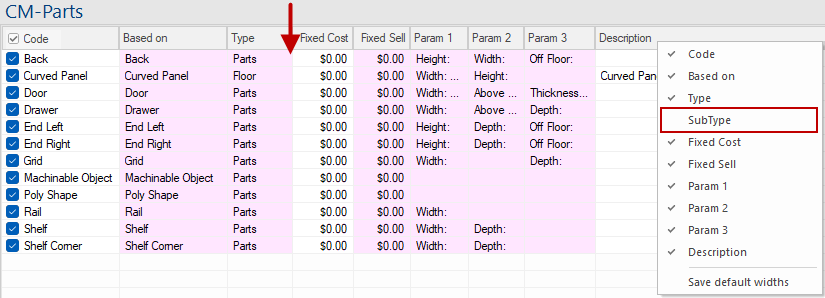
In the following example, we have selected the CM-Parts library (on the Home tab) and then opened the .
1) Select the items that are required to make your compound item.
2) Then from the right click menu or the ribbon command, select 'Create Compound Item'.
As shown below, the 'Create Compound Item' command changes to 'Ungroup from Compound Item' to allow you to reverse this process.
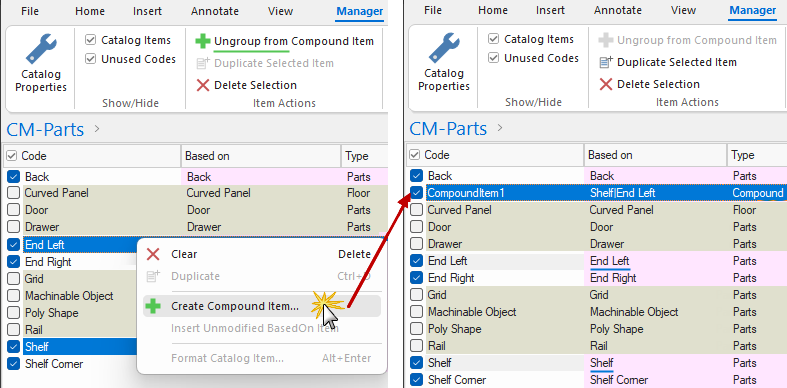
If the Use checkbox is ticked, the newly created item will be made available for selection for future jobs from the on the Home tab.
This is different to the Code/ID checkbox, which can be used to select/deselect
all items in the and in List View.
Duplicate Selected Item
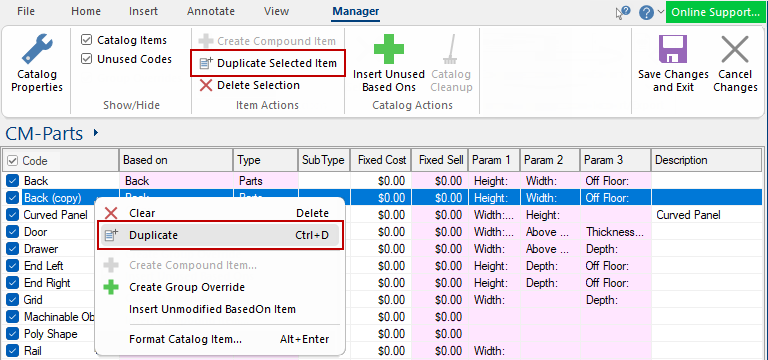
You can create a copy of an item by selecting an existing cabinet/item and 'Duplicate' (option also available from the right click menu).
- This can then be customised as required by either selecting Format Catalog Item from the right click menu or double clicking on applicable item.
Example of a duplicated item and right click menu options
The Back part has been duplicated. The item created i.e. Back (copy) and can be renamed and customised (or formatted).
You may prefer to use the Insert Unmodified BasedOn Item menu option, as it as allows you to create yet another copy of the “BasedOn Item” and start with its original configuration. This means that you have a new clean default cabinet in your library, unlike relying on the Duplicate menu option which will keep changes you may not want compared to the based-on item.
For a detailed discussion, see What is an Unmodified BasedOn Item?
Delete Selection
Deletes the selected 'Catalog Item' from the list. A message will be presented for the action to be confirmed.
The Clear command located on the right click menu (see above example), or the Keyboard Delete button, will produce the same result.
Catalog Actions
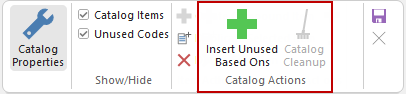
Insert Unused Based Ons
Library updates are regularly made available to customers with a valid Customer Care Maintenance annual subscription. Also, sometimes a new BasedOn cabinet is added by the library developer which you will want to add to your own customised library (.qim).
When a new cabinets/items are added to the base library of the active catalog, they do not automatically appear in the catalog.
The Insert Unused BasedOns menu command can also be implemented from the File menu > Prepare options.
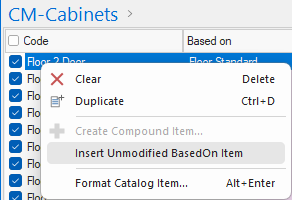
Often you make several copies of this BasedOn cabinet and modify each in different ways, to give a little family of cabinets.
If at some later date, you want to add yet another copy of this BasedOn cabinet and customise it in a different way again, you can use the LCM menu only option to Insert Unmodified BasedOn Item, as shown right, to add another copy of a BasedOn item, and start with its original configuration ready to be customised.
For a detailed discussion, see What is an Unmodified BasedOn Item?
Catalog Cleanup
The Catalog Cleanup tool is for support use only. The option is greyed out by default and only enabled when the applicable the registry option is enabled.
There are a number of other registry options that determine the behaviour of catalog cleanups more specifically.
Export / Import
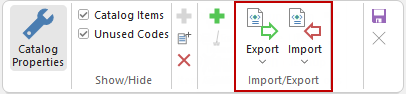
These selections are only applicable and made available to Developer software users.
Export
Export to a tab-delimited ASCII (text) or XML file into the current drawing.
The two exporting options are also available from the File menu.
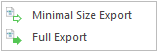
The difference between the two is that a Minimal Size Export does not save the properties that are the same as the in-built default values. For example, if the offset of a section is zero, this line will not be exported because zero is the default. A full export will output every property in a drawing, regardless of its value.
The main differences are, if transferring drawings via Import/Export...
-
to different versions of the program, you should use Full Export. This is because the defaults themselves may have changed, and only a full export will explicitly specify each value.
-
between programs of the same version, use Minimal Export. The only reason for this is that the exported files are smaller (because they do not contain defaults) and will therefore import quicker. For example, a full export of the SLC Sample library takes around 90Mb while a minimal export is only about 10Mb.
Export Filtering
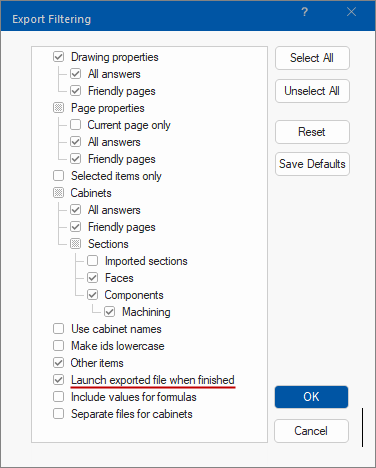
An Export Filtering dialog allows you to select what you see.
'Launch export file when finished' is the default option, which opens the file automatically after the export is complete.
Import
Merge from a tab-delimited ASCII (text) or XML file into the current drawing.
The importing options are also available from the File menu.
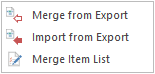
The Import from ASCII and Merge from ASCII options are very similar: both load values from a text file and add them to the current drawing. If a property already exists, it is overwritten with the new value.
The main difference is that Import clears the current properties first, so is effectively the same as starting a new drawing (or library) and then using Merge.
Merge is the most common option, as it allows you to add a handful of property values to an existing drawing.
OLE objects cannot be imported into a drawing or library. You will receive a warning when you try to export an OLE object, and you should delete the object then retry the export.
XML or ASCII
ASCII File format
The term "ASCII file" refers to a "text" file that is readable by the naked eye (it only contains the letters a-z, numbers, carriage returns, and punctuation marks). Therefore, any file that one can read with a common editor, like simple Windows Notepad program, is considered an ASCII file.
XML File format
Some benefits of using XML format files are that they :-
-
are self-describing, making them easy to read, create, and extend. They are human readable, making it easy to understand how data is interpreted during bulk operations.
-
contain the data types of target columns. The XML encoding clearly describes the data types and data elements of the data file and also the mapping between data elements and table columns.
-
allow for loading of a field that contains a single large object (LOB) data type from a data file.
-
can be enhanced yet remain compatible with its earlier versions. Furthermore, the clarity of XML encoding facilitates the creation of multiple format files for a given data file. This is useful if you have to map all or some of the data fields to columns in different tables or views.
-
can be used to bulk import data into tables or non-partitioned views and to bulk export data.
Save and Exit
When all changes have been completed, you need to save the .
- in the ensure that you click the Save Changes and Exit button.
- To close without making/saving changes, click on the Cancel Changes button.
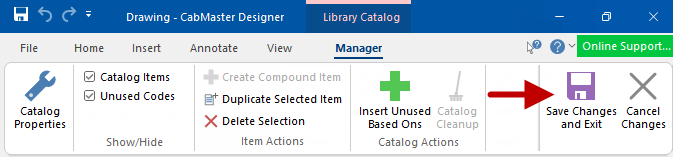
It is possible to click on other menu tabs but this does not close the . You must use either the Save or the Cancel command to properly exit.
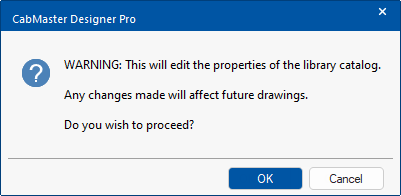
Changes to the only affect future drawings, so you may need to close current drawing and open a new drawing.
Cancel Changes
To different versions of the program, you should use Full Export.
This is because the defaults themselves may have changed and only a full export will explicitly specify each value.
Between programs of the same version, use minimal export.
The only reason for this is that the exported files are smaller, because they do not contain defaults, and will therefore import quicker. For example, a full export of the SLC Sample Library takes around 90MB, while a minimal export is only about 10MB.
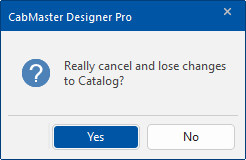
Cancel changes if you decide not to save any of the changes made. A message will be presented to ensure that you really want to lose all changes to the .
The library for viewing in the is related to the library selected on the Home tab.
This example shows the Library : CM-Parts on the Home tab. If you now open the , the items in the CM-Parts library are made available for editing etc., as shown below.


 click on the area of interest.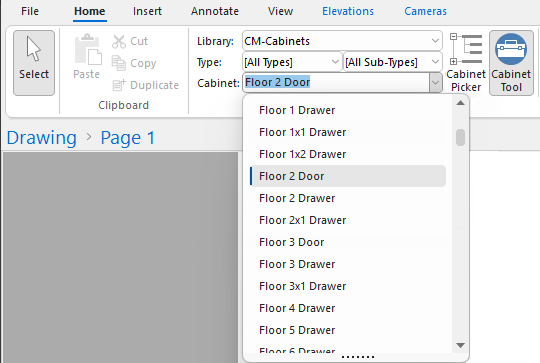
 check box can be used to uncheck the current list if already checked.